About
Glamaholic plates, Simple Glamour Switcher designs, and the game's own Glamour Plates are all optional extra sources — install any of them and Aetherfit pulls their designs into the same gallery, toggleable per source from the Integrations tab.
Stop juggling folders and separate plugin windows to find the right fit — Aetherfit brings your whole wardrobe into one browsable, taggable, screenshot-rich gallery.
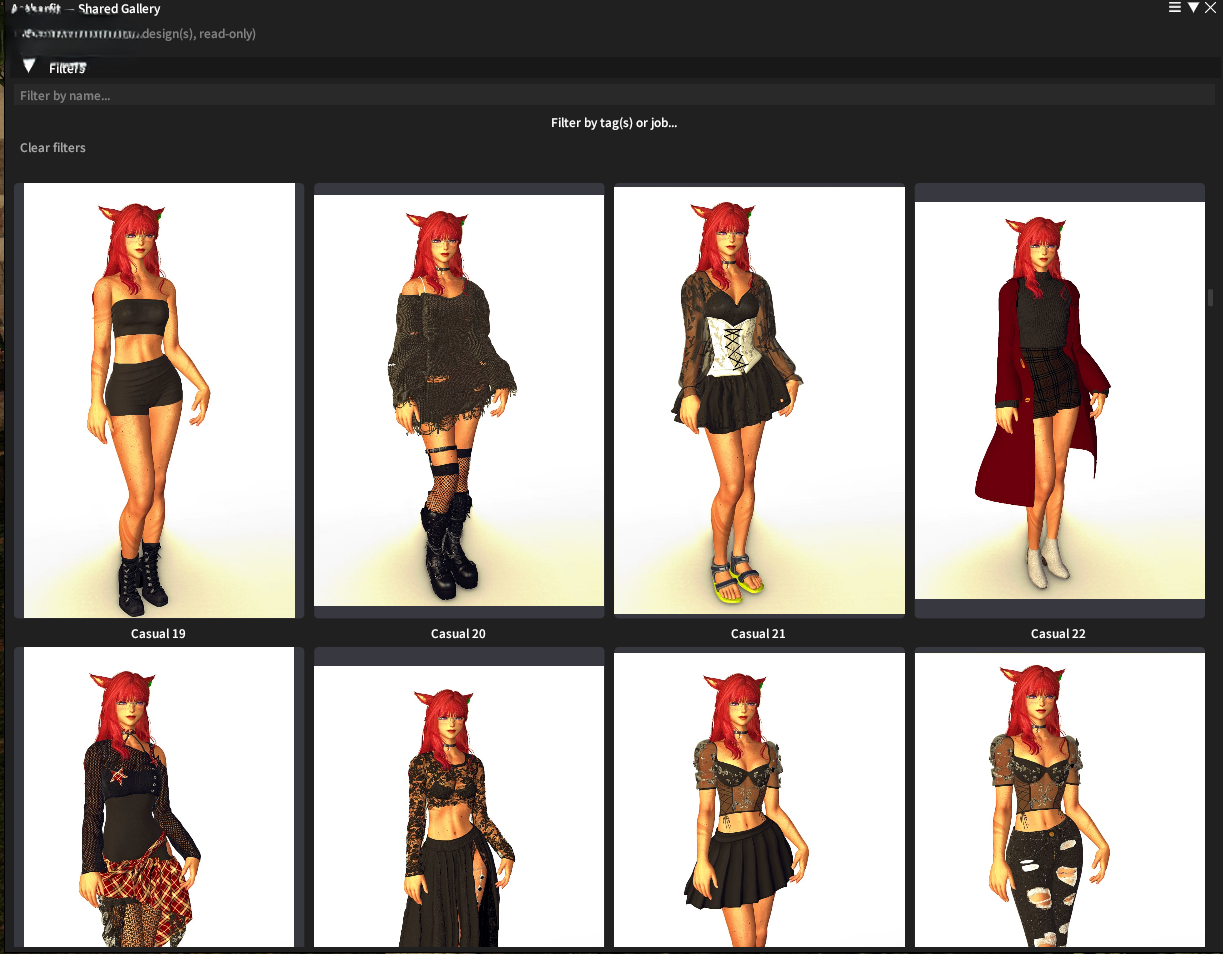
Glamourer is a powerful tool for managing and applying designs to your characters in Final Fantasy XIV. Aetherfit builds on top of it with a more intuitive, gallery-style frontend for browsing and applying designs. Designs no longer have to live in Glamourer itself, either — Aetherfit can pull them in from Glamaholic, Simple Glamour Switcher, and the game's own Glamour Plates too, showing everything together in one unified gallery regardless of where it's actually saved. Glamourer remains required either way, since it's still the engine Aetherfit uses to actually apply an outfit to your character, no matter which source a design came from.
Aetherfit is meant to be a lightweight, easy-to-use alternative to the default Glamourer interface — making it much easier to quickly find and apply the perfect design for any occasion. You'll still use Glamourer itself (or Glamaholic, or the game's own Glamour Dresser) to create, edit, and manage your actual designs; Aetherfit is focused purely on making it quick and easy to choose which design to switch to quickly.
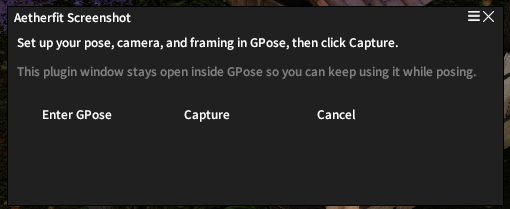
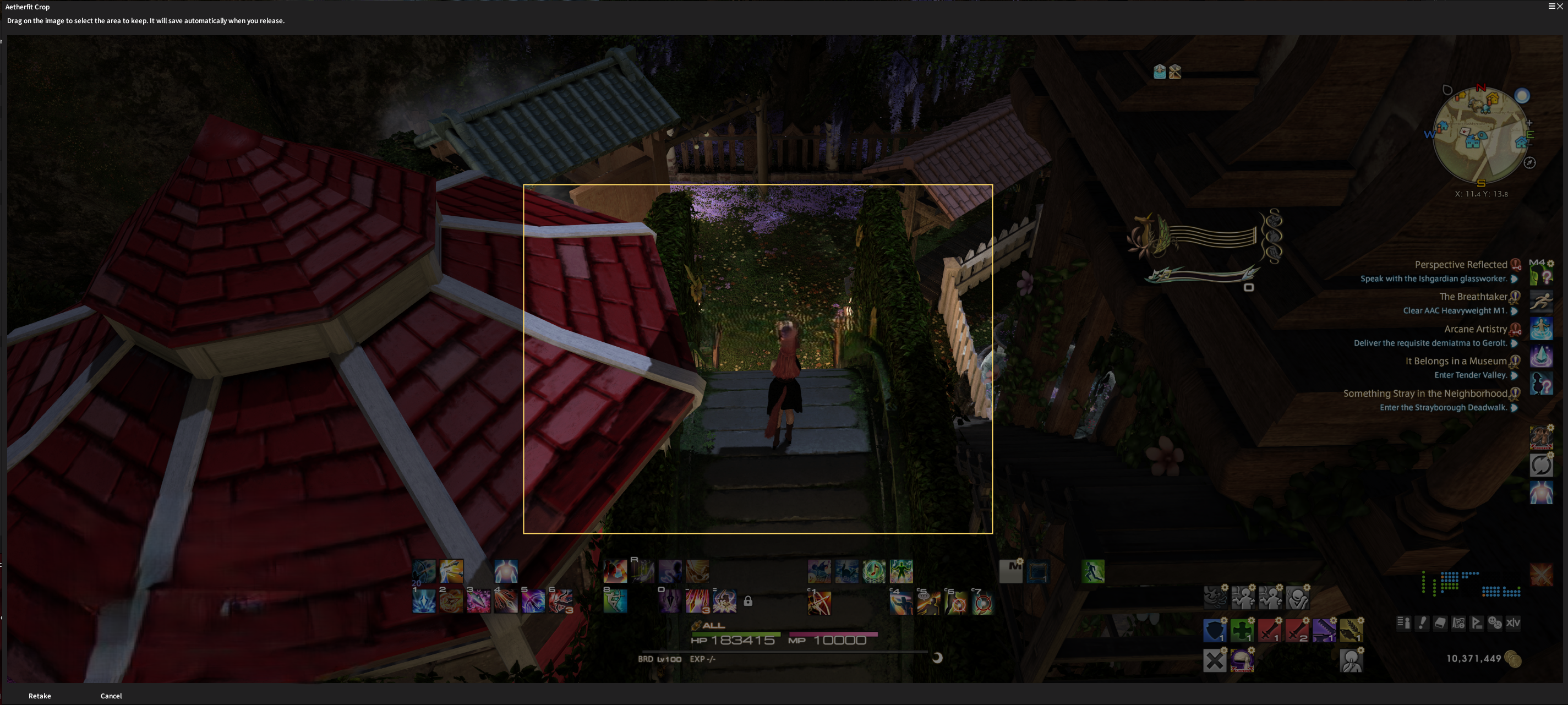
It also provides a quick and easy way to preview your designs with screenshots and images that can be added to them. Screenshots can either be loaded from disk or taken directly in game.
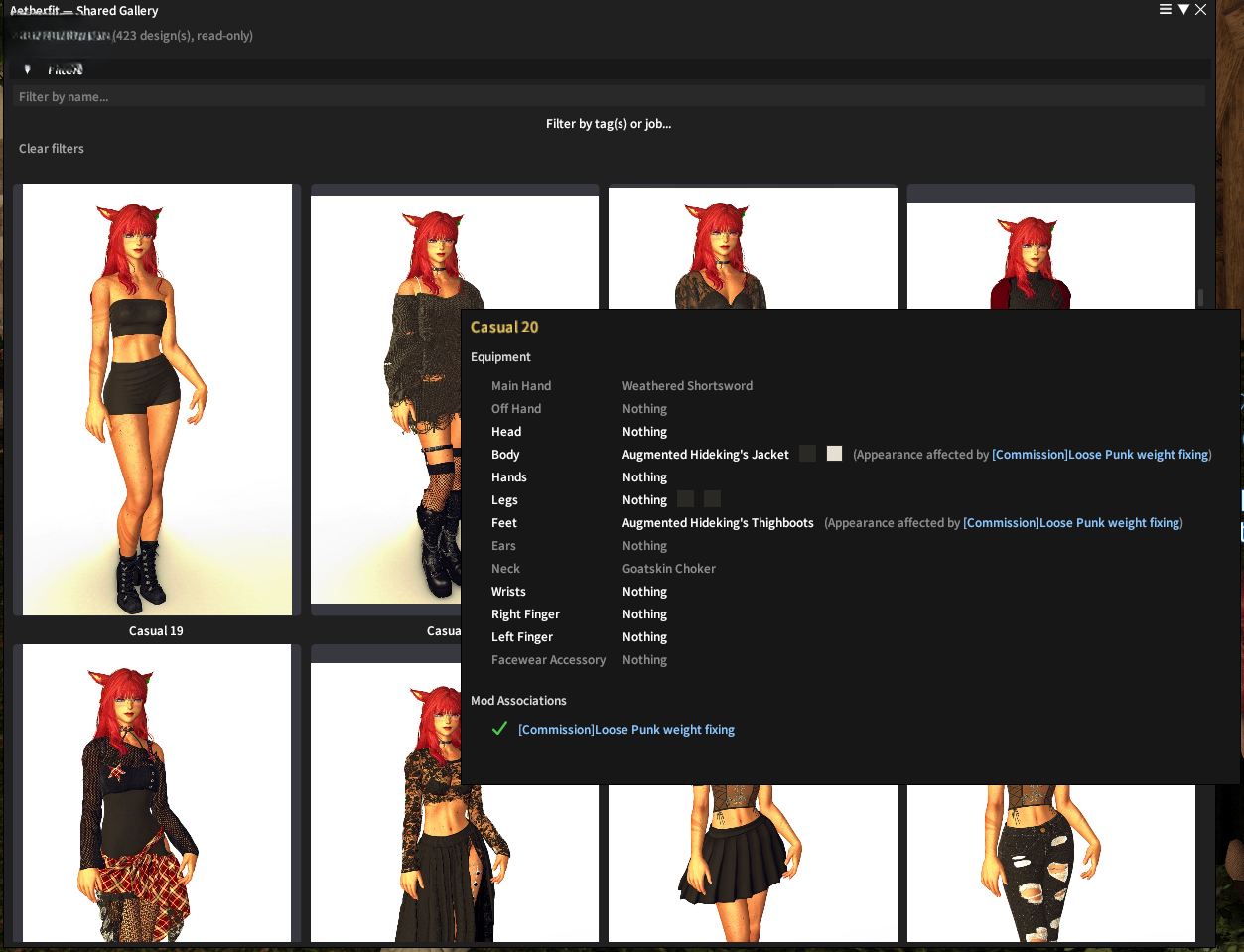
Tip: this isn't required, but if your designs rely on mods through Penumbra, the ideal setup is to use mod associations with temporary settings on your Glamourer designs, rather than enabling everything all the time. That way the relevant mods are automatically turned on and off as you switch between designs. See this guide for a brief explanation of mod associations and temporary settings.
Note: this has only been tested on the FFXIV client on Windows. Whilst the bulk of the plugin should work no matter what, the direct screenshot capture might not work on other clients/operating systems.
Features
Everything you need to find, tag, and nail the perfect fit:
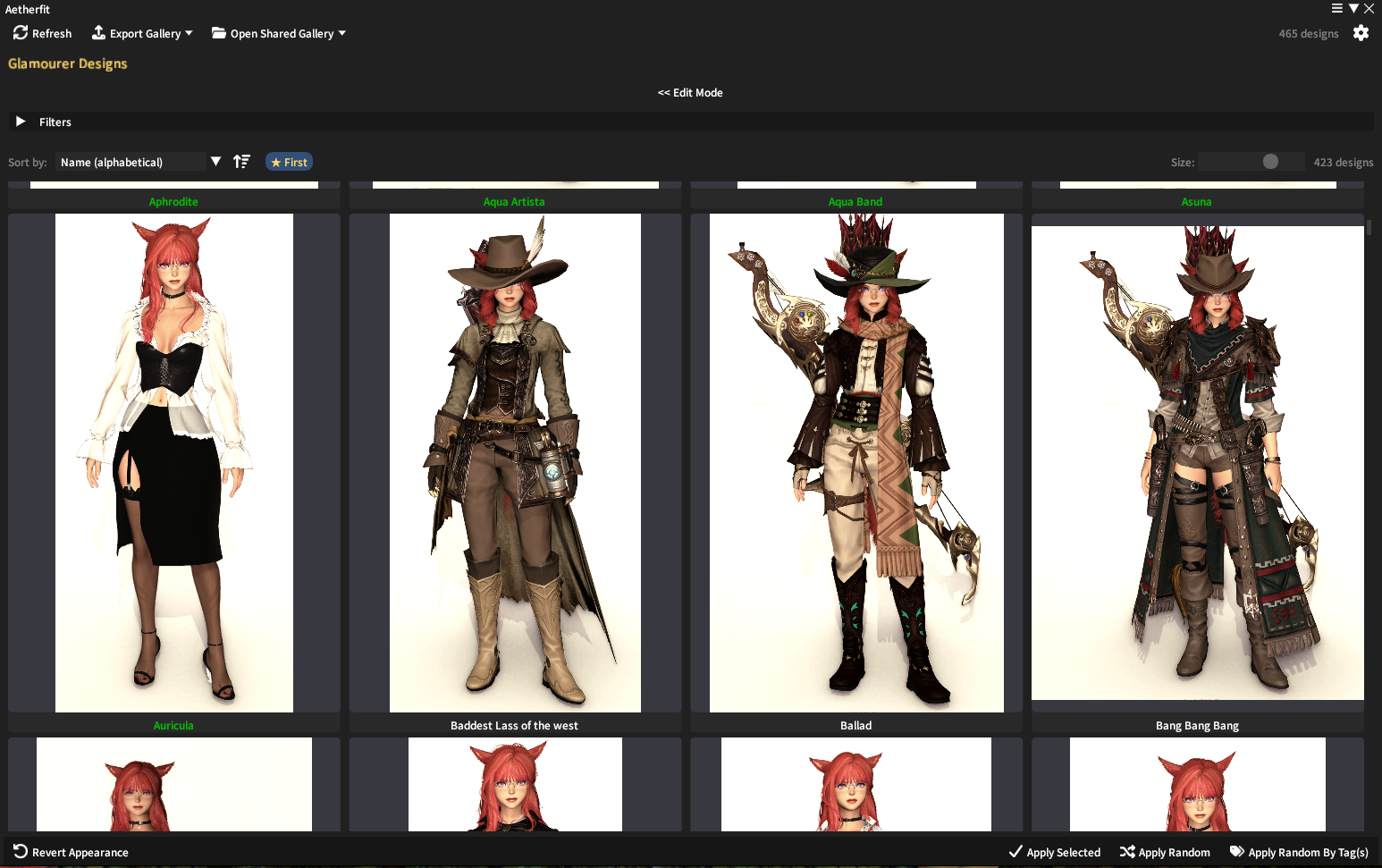
- Source designs from Glamourer, Glamaholic, Simple Glamour Switcher, and the game's own Glamour Plates — all in one location
- Browse and filter your whole wardrobe by tags in seconds
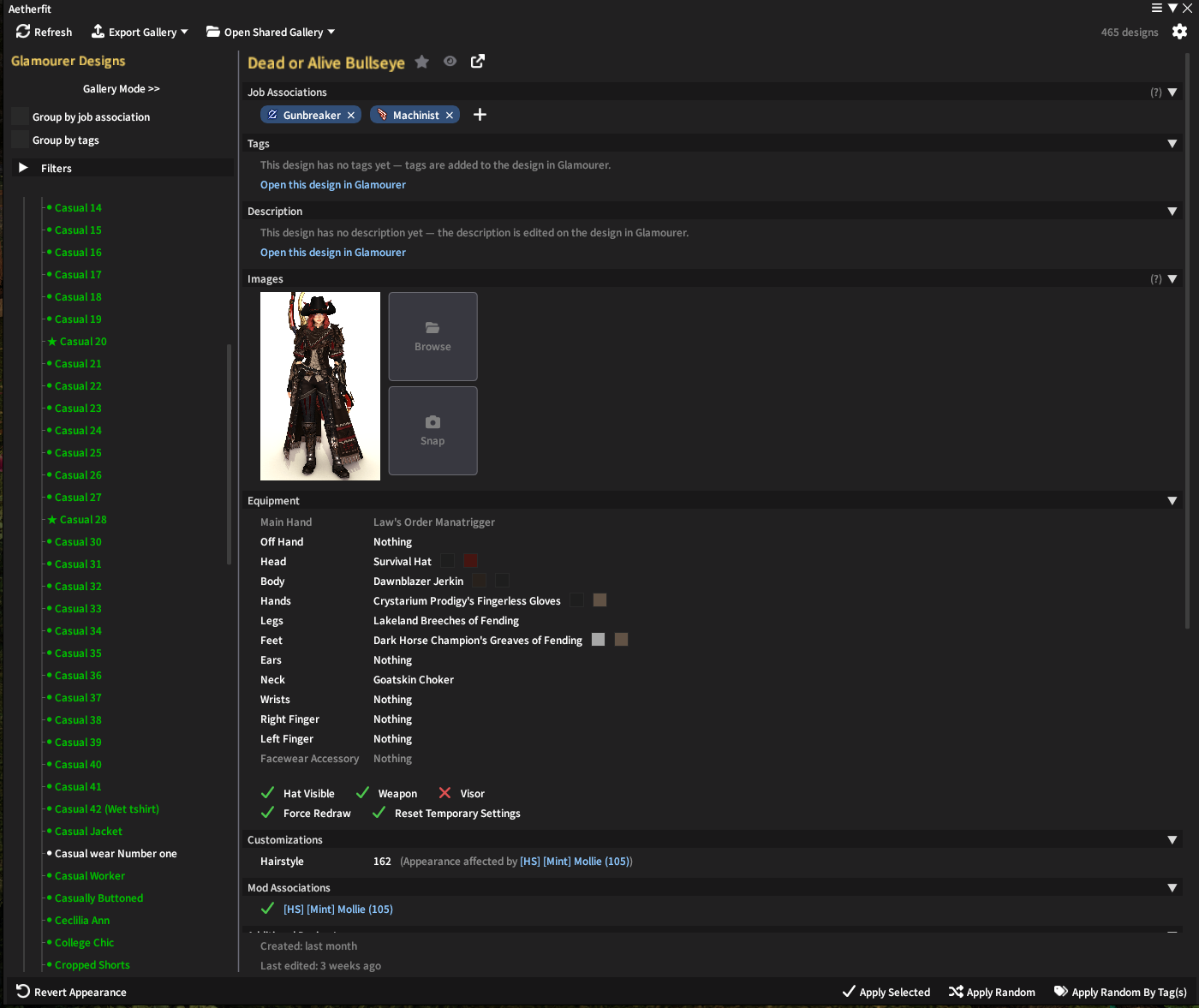
- Add screenshots so you always know exactly what a design looks like before you commit
- Get AI-suggested tags for a design from its own screenshots, powered by a local, on-device image tagger — nothing is ever uploaded anywhere
- Feeling lucky? Apply a random design, or narrow it down to a random pick from a set of tags
- Auto-dress on login — apply a random (or tag-matched) design the moment you log in
- Share your whole (Or partial) gallery with friend
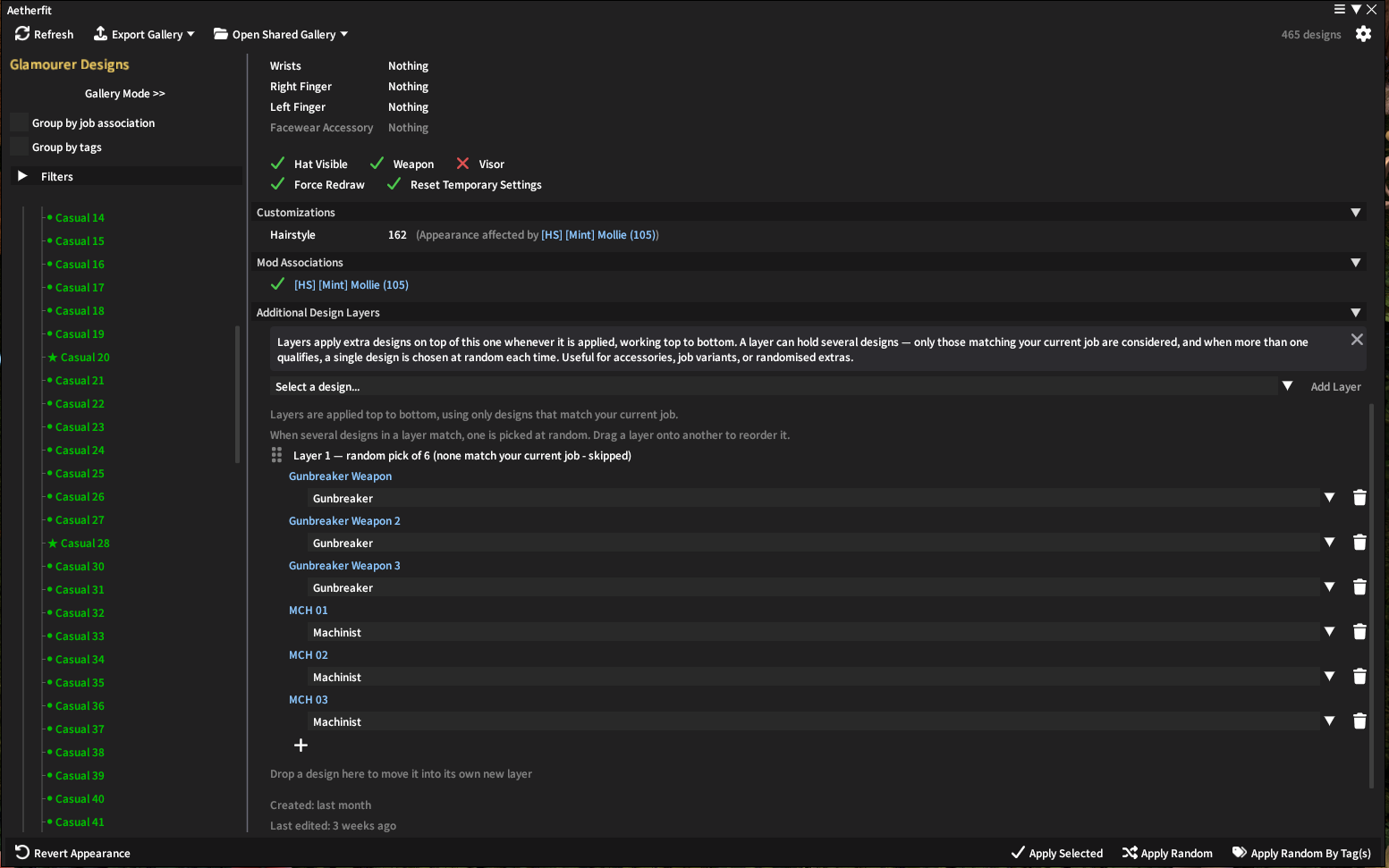
- Tie designs to specific jobs, so the right fit is always one click away
- Stack multiple layered designs, including a random pick from a pool — great for a surprise weapon appearance
- Run a Health Report to catch designs with missing mods, broken items, duplicates, or gear that won't fit your current race/gender
- Export a fashion-magazine-style PDF "look book" of your gallery's covers, ready to show off outside the game
- Group closely related designs — same mod with different settings, or the same outfit in another colour — as variants, stacked neatly behind their parent in the gallery and tree
Composite tags: tags can be written as category/type, e.g.
swimsuit/bikini or colour/blue. A design tagged this way matches filters for
the full tag or either half on its own — so it shows up whether you filter by
swimsuit/bikini, just swimsuit, or just bikini, without having to
add all three as separate tags. When designs are grouped by tags instead of folders, composite tags also
build a nested tree instead of one flat entry — swimsuit/bikini shows up as a
swimsuit branch containing a bikini branch, and a design carrying
summer/casual and winter/casual appears under both, keeping same-named subtags
(like casual) apart under their own parent.
AI tag suggestions: click the "Suggest tags" button in a design's Tags section to have a local image-tagging model look at that design's screenshots and propose tags for it — pick the ones you want and add them with one click. Everything runs on your own PC; no image or tag data is ever sent anywhere. The first time you use it, Aetherfit downloads a one-time model (choose from five, ranging from a few hundred MB up to ~1.2 GB, trading off size/speed against accuracy) plus the ONNX Runtime needed to run it — both configurable from Settings → Tag Suggestions, along with the suggestion confidence threshold, an option to also suggest composite tags (see above), and a blacklist for tags you never want suggested again (Shift+right-click a suggestion, or add one manually in Settings).
Screenshots
See it in action — click any screenshot to view it full size.
Installation
Getting started takes less than a minute:
Open the Dalamud Settings menu in game and follow the steps below. This can be done through the
button at the bottom of the plugin installer or by typing /xlsettings in the chat.
- Go to the "Experimental" tab.
-
Under Custom Plugin Repositories, enter the repository URL into the empty box at the bottom:
https://raw.githubusercontent.com/Kussie/Aetherfit/master/repo.json - Click the "+" button.
- Click the "Save and Close" button.
Once added, find Aetherfit in the main /xlplugins window and install it. Access the
plugin by typing /aetherfit in chat.
Command usage
Prefer the keyboard? Every core action is available as a slash command too:
/aetherfit- Opens the main interface.
/aetherfit random- Apply a random design from your entire collection of designs.
/aetherfit tag <tag1,tag2,...>- Apply a random design that has all of the listed tags. Separate multiple tags with commas.
/aetherfit tag favourite <tag1,tag2,...>- Same, but only picks from your favourites.
/aetherfit job- Apply a random design associated with your current job. Job associations are set per-design in the design details pane.
/aetherfit favourite [job]- Apply a random favourite design. Add
jobto only pick favourites associated with your current job. /aetherfit last- Reapply the last design you had worn.
/aetherfit revert- Revert your character to the game's state.
/aetherfit help- List these commands in chat.